 CommentCrate
Put your giveaway on stream with OBS
Viewers trust a draw they can watch. Stream screen is a separate CommentCrate window built for OBS: it shows who is joining while entries are open, then the draw and the winner, and you capture it like any other window.
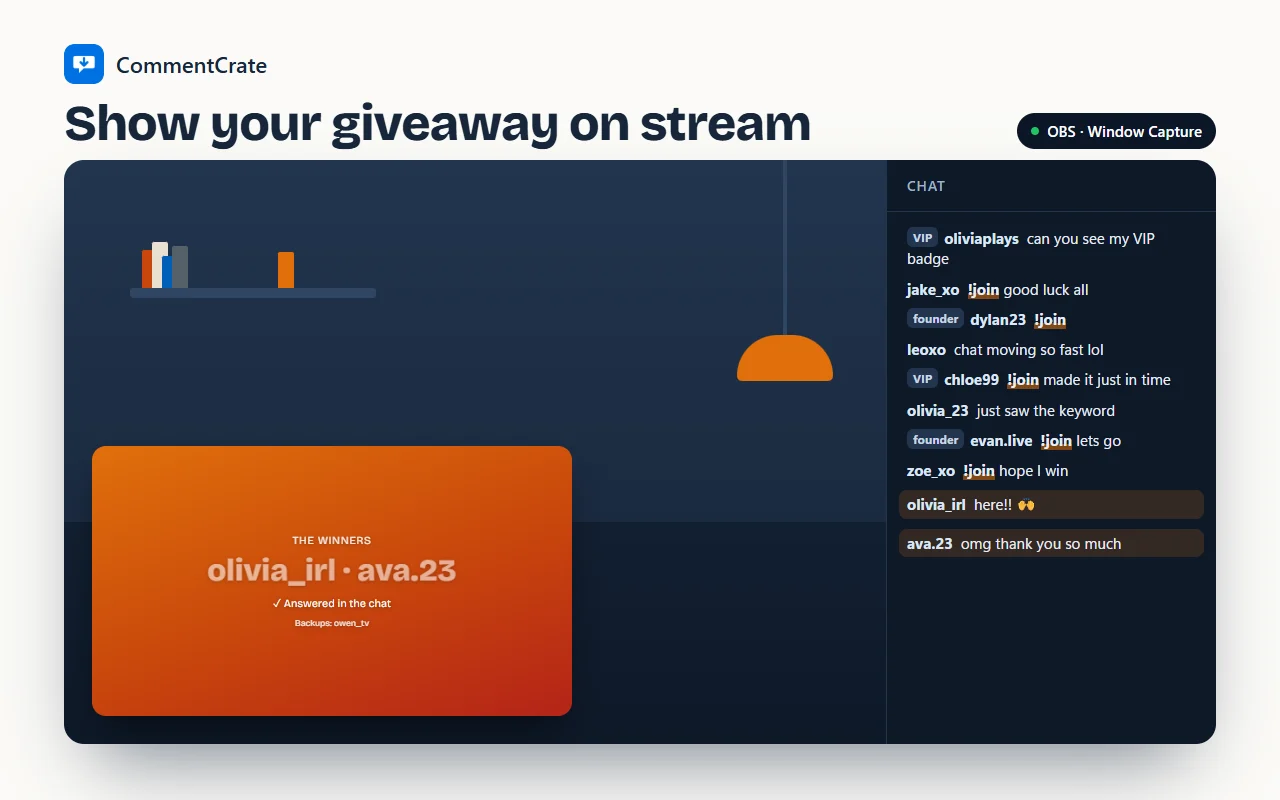
What your viewers see
While entries are open the screen calls people in with your word (“Write !join in the chat to join!”), counts how many have joined, lists the last few names as they come in and shows how long entries stay open. When you press Draw in the panel, the screen plays the draw, then shows the winner and the backups. If you gave the winner time to answer, “✓ Answered in the chat” appears next to the name once they write.
You keep working in the panel. The screen only follows it, so you can set the rules, check the count and draw without anything private showing on stream.
Add it to OBS in a minute
In the Giveaway tab, press Stream screen under the Draw button. A small window opens. In OBS, add a source, choose Window Capture and pick that window. Then right-click the source, open Filters and add Chroma Key with green. The background disappears and only the text and names sit over your scene.
Streamlabs works the same way: a Window Capture source and a Chroma Key filter. Keep the window open and don’t minimise it, because a minimised window gives OBS nothing to capture. It can stay behind other windows when OBS uses the “Windows 10 (1903 and up)” capture method. Set it up once before you go live and save the scene; next time you only open the window.
Green, dark or your own colours
The background menu in the window has three choices. Green is for the colour key. Dark gives a finished panel you can place in a corner of your layout without a filter. Brand colours uses the colours you set for the look of your draws, so the screen matches the winner picture you post afterwards. The window remembers your choice.
Also for post giveaways
The screen isn’t only for live chat. If you draw winners from an Instagram or TikTok post and record your screen for a reel or a story, open Stream screen and capture the draw from there; it reads better on a phone than the panel does.
Stream screen is part of Pro. It is a window of the extension and receives everything from the panel on your computer; nothing is sent to a server. Start with the live chat giveaway guide if you haven’t recorded a chat yet.