 CommentCrate
How to export YouTube comments to CSV or Excel
Allow CommentCrate on YouTube once, scan the video, and save its comments as a spreadsheet.
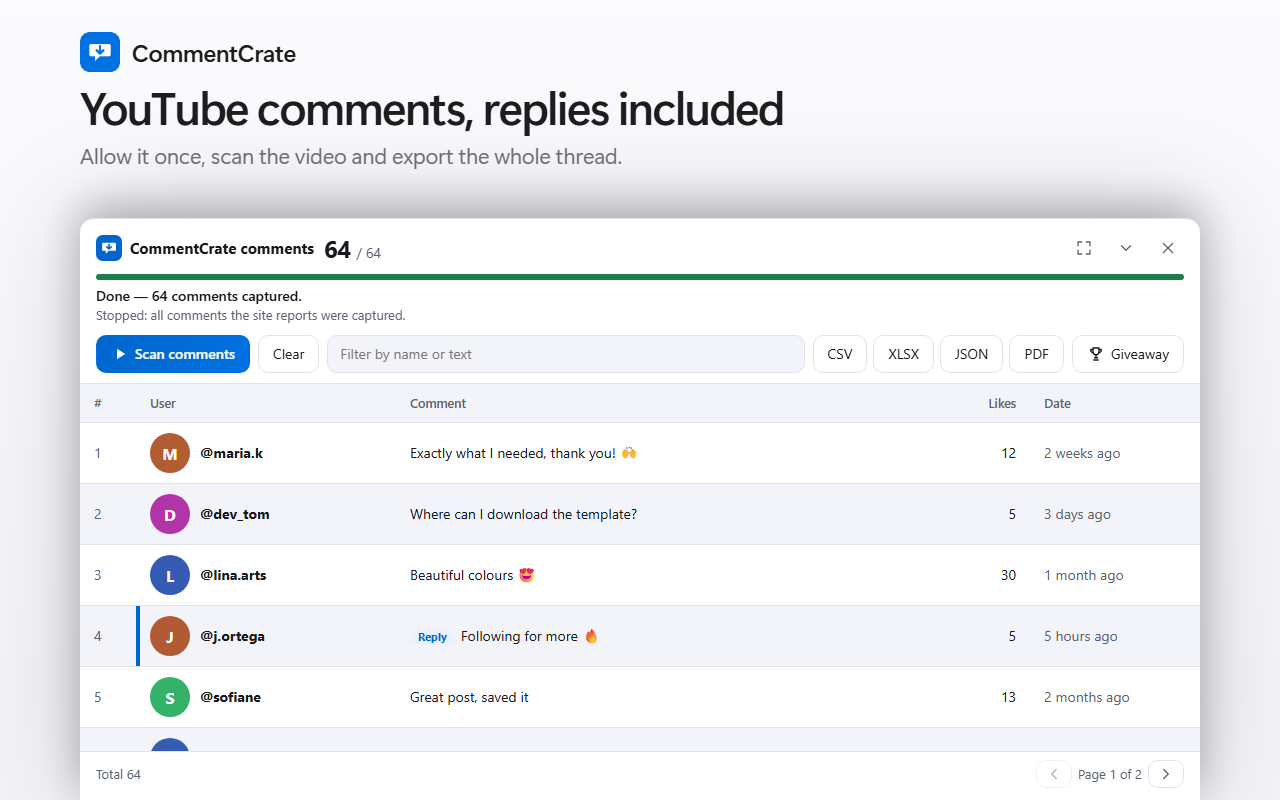
1. Allow it on YouTube (once)
YouTube support is optional, so the extension asks for it only when you want it. Open a YouTube video, click the CommentCrate icon and press Allow on this site. Chrome asks for your permission; you can withdraw it at any time in the extension settings.
2. Scan the video
- Open the video and keep the tab in front.
- Click the CommentCrate icon and press Scan comments. The extension scrolls the comment section the way you would and loads more until it is done.
- Press CSV or XLSX (JSON and PDF with Pro). The file is saved on your computer.
Everything happens in the memory of that tab. Keep it open until you have saved your file, and do not reload it.
What the file contains
One row per comment: id, parent id (for replies), author handle, text, likes, post address and a hidden flag. YouTube shows only relative times such as “2 weeks ago”, so the file has that text in its own publishedText column; the exact date is not available.
Replies, giveaways and limits
- Replies are part of Pro: they are expanded and saved with the parent link of each reply. The free plan exports up to 100 top-level comments.
- The giveaway tool works on YouTube too, but date ranges do not, because YouTube gives no exact time.
- Very large videos take several minutes and use more memory. Comments YouTube holds back for review or has removed cannot be exported.
- If YouTube changes its page, scanning can stop working until the extension is updated.