 CommentCrate
How to export TikTok comments to CSV or Excel
Allow CommentCrate on TikTok once, scan the video, and save its comments, with exact times, as a spreadsheet.
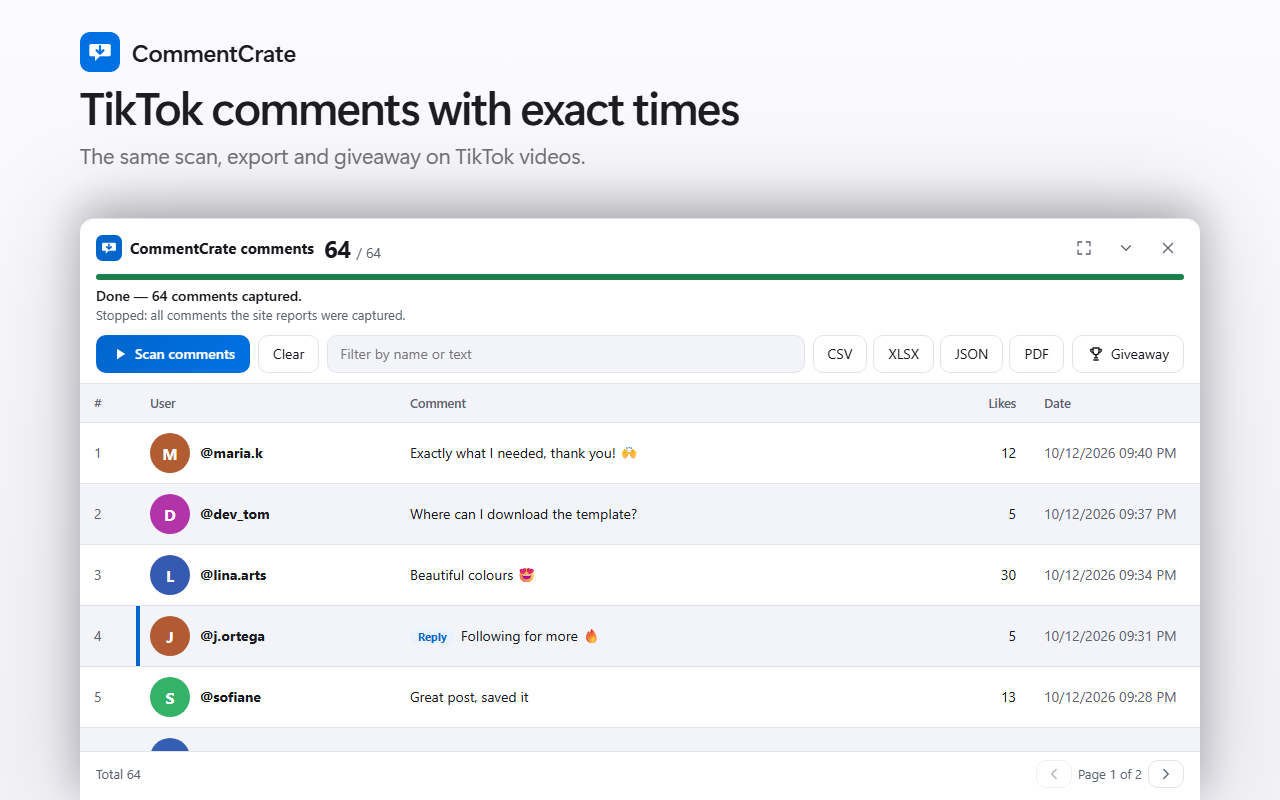
1. Allow it on TikTok (once)
TikTok support is optional. Open a TikTok video in your browser, click the CommentCrate icon and press Allow on this site. Chrome asks for your permission; you can withdraw it at any time.
2. Scan the video
- Open the video page (the address contains
/video/) and keep the tab in front. - Click the CommentCrate icon and press Scan comments. The extension scrolls the comment list and opens “view replies” for you with Pro.
- Press CSV or XLSX (JSON and PDF with Pro).
The scan runs in the memory of that tab: keep it open until the file is saved.
What the file contains
One row per comment: id, parent id (for replies), author, text, likes, the exact time of the comment, post address and a hidden flag. Authors are saved as @username, and in the giveaway tool a winner’s name opens their TikTok profile.
Limits to know
- TikTok may ask you to solve a puzzle (CAPTCHA). Solve it yourself; the extension does not.
- Replies are part of Pro; the free plan exports up to 100 top-level comments.
- Comments that TikTok filters or has removed are not available, and its own count can differ from what can be read.
- If TikTok changes its page, scanning can stop working until the extension is updated.